Workflow
How SampleVerify verifies every specimen
Staff capture two identifiers — a patient label and a specimen or test label. The system independently retrieves authoritative data for each from the hospital's electronic health record, cross-references them, and returns a clear result.
- 1
Verification session initiation
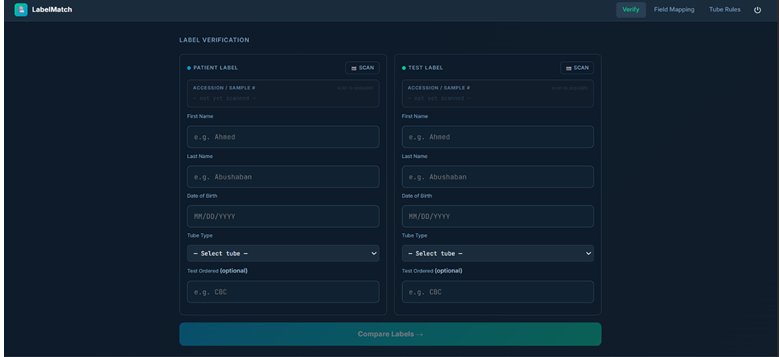
Once logged in, the staff member opens the Verify screen, which presents two distinct input areas: one for a Patient Label and one for a Test Label. No comparison can proceed until both are captured.
- 2
Patient label capture
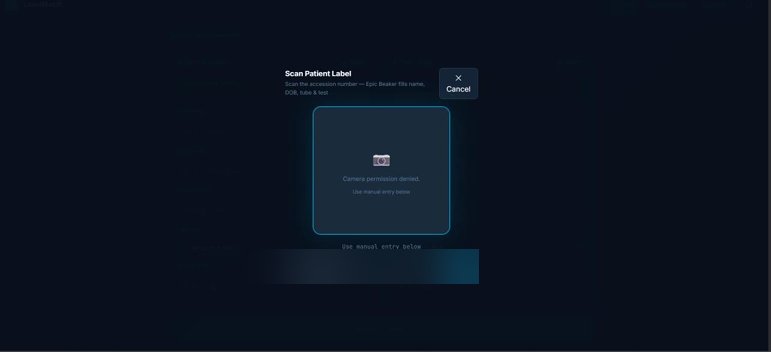
The staff member captures the patient identifier either by scanning a barcode on the patient's label using the device camera, or by manually entering or pasting the identifier. The system dynamically detects which barcode formats the device supports, rather than being limited to a single fixed symbology.
- 3
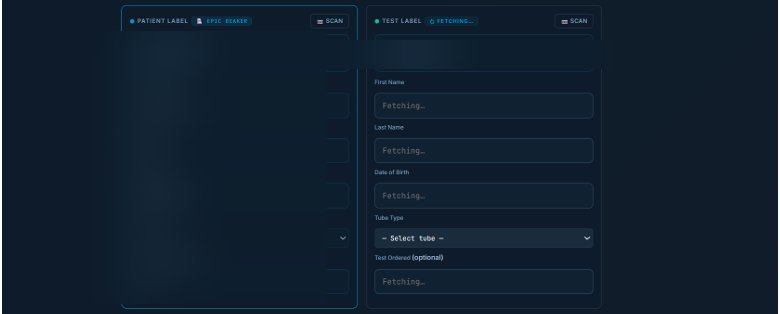
Automated retrieval from the EHR
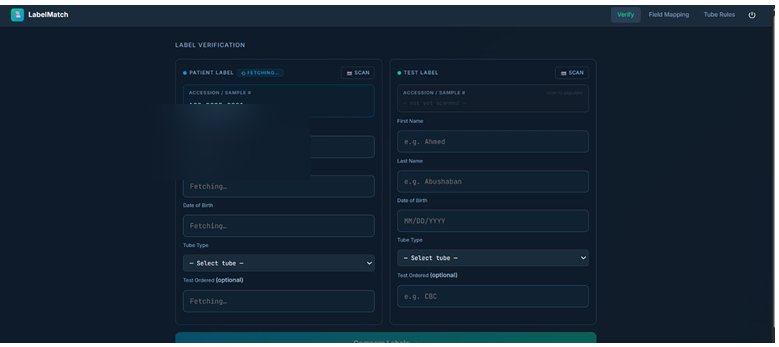
Once both identifiers are captured, the application performs a server-side lookup against the hospital's electronic health record system to retrieve patient demographic data, specimen data, and the associated ordered test for each identifier. Retrieval runs entirely on a backend service — the client device never communicates directly with the hospital's system. The backend authenticates with a signed digital credential through OAuth 2.0 Backend Services rather than a shared password, and the connection endpoint is configurable per hospital.
- 4
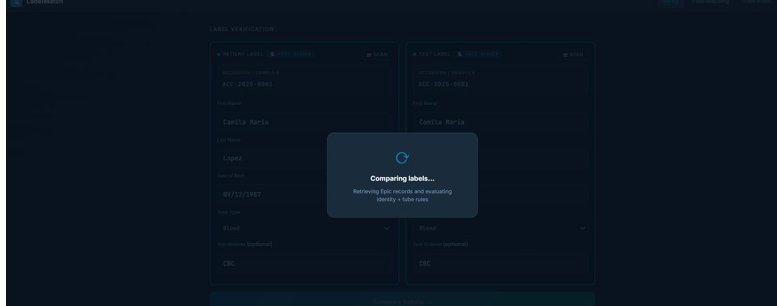
Automated comparison engine
The retrieved data passes through a comparison engine that checks two independent conditions: whether the patient identity fields (such as name and date of birth) on each label match one another, and whether the specimen container type is compatible with the ordered test according to a configurable rule set. Both checks are evaluated before any result is returned.
- 5
Result classification and display
The system returns one of four distinct outcome states rather than a single pass or fail, each shown immediately with a distinct visual indicator.
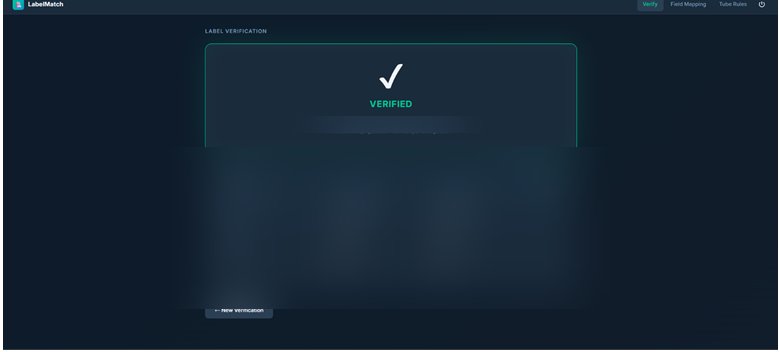
Verified
Both identity and container checks passed.
Mismatch
A patient identity discrepancy was found.
Warning
Identity matches, but the container or test is incompatible.
Unable to Verify
Not enough data could be retrieved to complete the check.
Configurable rule engine
Two administrator screens let the matching logic adapt to each hospital without code changes.
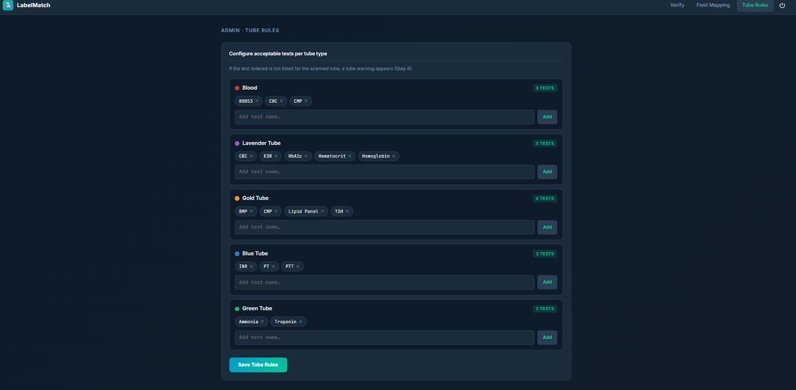
Tube rules
Admins define which container or tube types are valid for each test type. The comparison engine uses this rule set, which can reflect a hospital's own container standards.
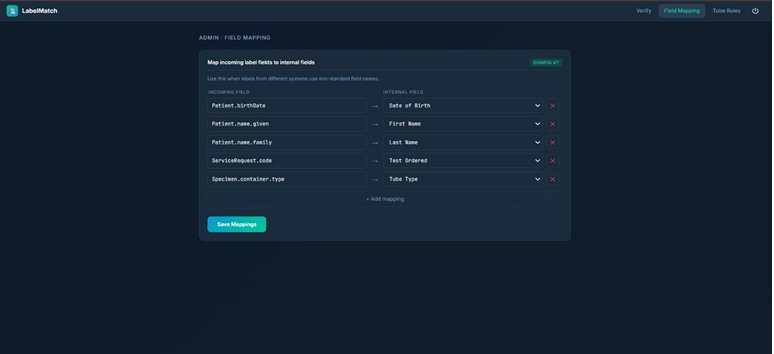
Field mapping
Admins define how incoming EHR data fields correspond to the fields used by the comparison engine, so the same logic adapts to different hospital data structures.
Technical architecture
- Backend-mediated integration
- The client never talks to the EHR directly; every lookup is proxied through a dedicated backend service.
- Standards-based retrieval
- Patient, specimen, and order data are retrieved as HL7 FHIR resources, adopted broadly across EHR vendors.
- Server-to-server authentication
- A signed credential via OAuth 2.0 Backend Services — no interactive login step and no credential exposed to the device.
- Per-hospital configurability
- Connection endpoint, tube rules, and field mappings are each independently configurable.
Current status
All functionality above has been implemented and verified against Epic's sandbox FHIR environment. It has not yet been connected to a live hospital environment; that step requires a hospital to complete its own onboarding, security review, and approval process.
Request a demo